ben
Bridge Engine
This is a game engine for bridge. It can be used as a robot player, to do analysis, or to develop AI for bridge.
The engine is built using machine learning (neural networks) and double dummy solver through the python wrapper python-dds.
To get a first impression of how the engine plays, please take a look at the demo, or watch the bridge streamer Peter Hollands demo the robot on IntoBridge.
For a few examples of how you can use the engine for analysis or development, see the tutorials.
If you like the software, please consider making a donation to support the developers.

Getting Started
Installation
The engine runs on Python 3.12, with the neural networks using TensorFlow 2.18.1 (Keras 3.5.x). All platforms standardise on Python 3.12.
The recommended way of installing is in a conda environment (see conda_setup.sh), but it can also be run in a plain venv / system Python 3.12 via pip install -r requirements.txt.
For Windows users: After installing anaconda, you will have a new application called “Anaconda Prompt”. Henceforth, you will have to run all commands in “Anaconda Prompt” not in “cmd”. The title bar of your command prompt window should read “Administrator: Anaconda Prompt (Miniconda3)”
After installing conda, execute the commands in the conda_setup.sh script to create an environment and install the dependencies.
The bridge engine was developed on Linux. It will likely work on any other platform which runs Python, but was only tested on Windows 10 and Windows 11 and Mac M1/M2.
For Mac M1/M2 users: you need to install Homebrew if you don’t have it already, then brew install boost.
On Amazon, there is an image Public_Ben_Bot_V1.2 for starting an instance of BEN. After starting the instance just log in and execute [start_ben_bot_screens.sh].
For Ubuntu users: you might have to install libboost using sudo apt install libboost-thread-dev.
Double-dummy solver: BEN’s double-dummy solver uses the
dds3extension (DDS 3.0.0), not the olddds.dll/libdds.so. Prebuilt copies are vendored per platform underbin/dds3-win/,bin/dds3-linux/,bin/dds3-darwin/and are loaded automatically. Each is a compiled extension locked to Python 3.12; to use a different Python or build for an unsupported platform, see src/ddsolver/README.md. Thelibddslibraries kept underbin/are used only by the BGADLL/PIMC engine.
Running natively on Linux (including WSL)
Docker users need to do nothing — the image is built on Ubuntu 24.04 / Python 3.12. For a native (non-Docker) Linux install, note that the vendored bin/dds3-linux/_dds3.so is built on Ubuntu 24.04 and therefore requires:
- glibc ≥ 2.38 — i.e. Ubuntu 24.04+, Debian 13+, Fedora 38+. On an older distro (e.g. Ubuntu 22.04, glibc 2.35) it fails at import with
version 'GLIBC_2.38' not found. Run on a newer distro, or rebuilddds3against your glibc (see src/ddsolver/README.md). - Python 3.12 — the extension is locked to the CPython minor version.
WSL quick start (Ubuntu 24.04) — the simplest way to run/test the Linux build outside Docker.
Fully automated, from Windows PowerShell in the repo root — setup_wsl.ps1 installs the distro (if needed) and then runs the Linux provisioning inside it:
powershell -ExecutionPolicy Bypass -File setup_wsl.ps1
(First run installs Ubuntu-24.04 and opens its one-time username/password setup; complete that and re-run the script. If the distro already exists it provisions straight away.)
Or do it in two steps — install the distro once on Windows, then run the setup script inside it:
wsl --install Ubuntu-24.04 # Windows; installs alongside any existing distro
# Inside Ubuntu 24.04 - the repo on your Windows drive is at /mnt/<drive>/...
cd /mnt/d/GitHub/ben && bash setup_linux.sh
setup_linux.sh is idempotent and does everything: system packages (incl. python3-gdbm), a Python 3.12 venv at ~/ben with requirements.txt, and the .NET runtime for the ACE/BBA engines. When it finishes:
source ~/ben/bin/activate        # or 'ben-activate' in a new shell
cd /mnt/d/GitHub/ben/src
python game.py --boards ../Challenges/martens_declarer_first10.pbn --auto true
Running the Web App
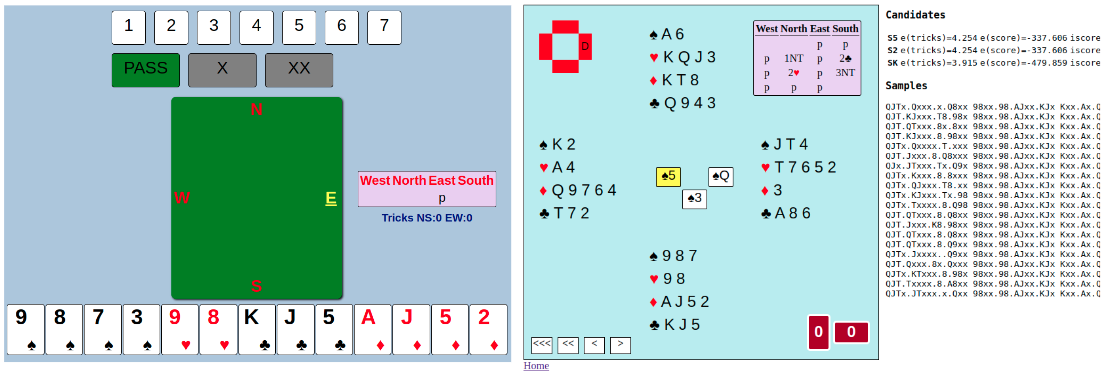
The engine has a (very basic) UI which enables you to play as a human agains three bots and then review the games you played.
The app runs in the browser, and the service has two components: (1) “appserver” which serves the UI through http, and (2) “gameserver” which serves the API to interface with the bots through websockets.
Following are instructions to start the service:
First, make sure that you are located in the src directory
cd src
Activate the conda environment
(If you are on Windows, make sure that you are in the “Anaconda Prompt”, not in the default Windows command prompt)
conda activate ben
Start the game server
(If you are on Windows you can omit sudo from the following commands)
python gameserver.py
By default you will just get random boards, but you can start the server with a parameter, and read boards from a file:
python gameserver.py --boards file.pbn
Only pbn and BEN’s own internal format is supported (See input.ben) adding –boardno will start from that number in the file.
And start the app server
cd frontend
python appserver.py
Now you can use the browser to navigate to http://127.0.0.1:8080/home
There will be a link “Play now”. If you click that, a new board will be started and you can start playing bridge (you are South).
After playing a hand, a link to an analysis page will appear on the home page. The UI was tested on Firefox, Chrome and Android.
Running the Web App using container (Linux & Windows WSL2 …)
It could be tricky to setup them all correctly in your environment, container env (like docker, podman) is another choice.
ghcr.io/lorserker/ben container package is auto generated for each release. Inside it will execute the start_ben_all.sh to start above scripts automatically.
$ podman run --rm -it -p 8080:8080 -p 4443:4443 -p 8085:8085 ghcr.io/lorserker/ben  # <CTRL-C> to stop
Reading deals from: /app/src/gamedb
Bottle v0.12.25 server starting up (using GeventServer())...
Listening on http://0.0.0.0:8080/
Hit Ctrl-C to quit.
...
Playing random deals or deals from the client
models loaded
Listening on port:  4443
The container exposes three services:
- Web UI: http://localhost:8080 - Play bridge in your browser
- WebSocket: ws://localhost:4443 - Real-time game server
- REST API: http://localhost:8085 - API for bidding, play, and analysis (see README-api.md)
You can build it locally like below to test local changes. New Mac is ARM based (not x86), you need to build locally as well.
$ podman build -t ben .
$ podman run --rm -it -p 8080:8080 -p 4443:4443 ben
If you want to debug in container env, then you need to map code repo into it, -v $PWD:/app.
Tutorials
The tutorials serve as illustration of the engine’s API and functionality, and should be helpful as a starting point if you would like to use the engine in a more customized way for analysis or for development.
The examples run in jupyter notebooks, but it’s also possible to just read them without installing anything.
- Bidding shows how you can use the engine to bid hands and to sample hands which are consistent with a given auction
- Opening Leads illustrates how the engine “decides” which card to lead
- Card-by-card Analysis this example shows how the engine can go through an already played hand, analyse every bid made and every card played, and find possible mistakes. You can also give it a hand you played on BBO to see what the engine “thinks” about your play
- Single Dummy Estimates this exemplifies the use of a neural network to predict how many tricks declarer will take in a given contract on a given opening lead. As opposed to double dummy solvers, the results are approximate, but much faster.
Play against itself and against other bots
To make the engine play against itself, execute this command:
python game.py
After each board, it’s possible to go through the play using the web UI.
You can send a PBN-file as parameter, when starting the game.
To make the engine play against other bots:
First run the bridge monitor table manager server.
Then, run the command below to connect to the table manager using the blue chip bridge protocol version 18
python table_manager_client.py --host 127.0.0.1 --port 2000 --name BEN --seat North
that will connect to the table as North - the other seats can be taken similarly.
What the engine cannot do (yet)
Below is a list of features which aren’t implemented in this engine yet, but you would probably expect them from a bridge robot:
- can’t understand explanations of bids
- can’t use or interpret defensive signals
- isn’t deployed as a service which you could play with on the internet (you have to install it to use it)
Articles
- Free and Open Source Bridge AI Engine Released
- Bridge AI: How Neural Networks Learn to Bid
- Play with Ben on IntoBridge
- Meet Ben, a Bridge AI with a Difference
How to cite
@misc{Dali2022,
  author = {Dali, Lorand},
  title = {Bridge Engine},
  year = {2022},
  publisher = {GitHub},
  journal = {GitHub repository},
  howpublished = {\url{https://github.com/lorserker/ben}},
}
Using Mac
On Mac i use python3 and pip3
Discord
You are welcome to join our Discord server “BEN the bridge engine” at https://discord.gg/9vaTn2Em